
Automatic detection
IDrive detects supported AI agent files and folders on your computer, so you do not have to locate them manually.
Back up locally stored conversations, settings, configurations, CLI data, and other supported data from your AI agents to your IDrive account.
SIGN UP NOWIDrive detects supported AI agent files and folders on your computer, so you do not have to locate them manually.

Back up on demand or on a schedule. Temporary and cache files are excluded, so only the data you need is backed up.

Restore your AI agent data in a few steps, then open the agent and sign in or reconnect your AI provider to continue working.

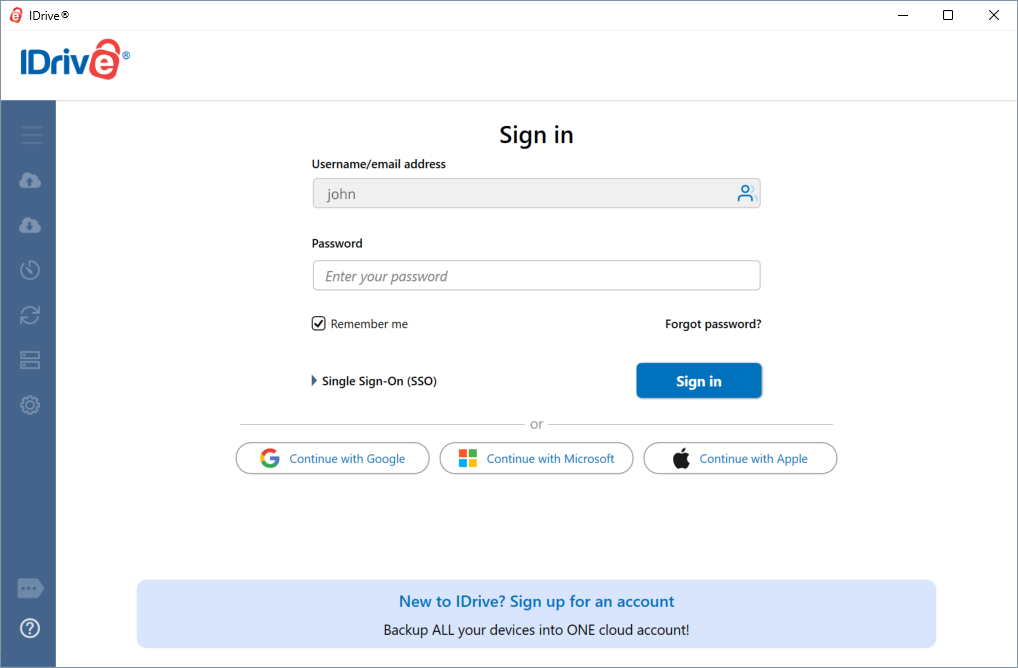
Manage backups and restores for Claude, Cursor, Codex, and Cline from a single interface in the IDrive desktop application.

Claude, Cursor, Codex, Cline

Desktop application

Secure storage

Same or new computer

Restore conversations, settings, and configurations that were deleted by mistake.

Restore your AI agent data to another computer, without setting up each agent again from scratch.

Bring back your settings, CLI configurations, extensions, and scheduled tasks after a fresh installation.

If your computer fails or local AI agent data is lost, restore it from your IDrive account.
AI Agents Backup protects application data, settings, conversations, and configurations. To protect your code repositories, working project directories, and source files, use IDrive's regular file and folder backup with the same IDrive account.
IDrive backs up supported data stored locally on your computer, such as conversation and chat history, supported workspace data, application and editor settings, CLI configurations and session data, extensions, and other agent-specific data. The exact data backed up depends on the AI agent.
No. IDrive backs up only supported AI agent data stored locally on your computer. Regular Claude Chat conversations and Cowork conversations are stored on Anthropic's servers and are not included in the backup. However, Claude Code conversation history stored locally on your computer is backed up and can be restored. After restoration, these conversations appear under the Code tab in the Claude Desktop application.
AI Agents Backup does not include working project directories, repositories, or source files. Use IDrive’s regular file and folder backup to protect them.
IDrive must detect files or folders related to the AI agent on your computer before you can schedule a backup. Make sure the AI agent is installed and has been used at least once.
Yes. Close the AI agent application completely on the destination computer before starting the restore. For the Cline VS Code extension, close VS Code. For the Cline desktop application, also end any running ‘bun’ process (cline-cli.exe) in Windows Task Manager.
Yes. After restoring, sign in to Claude, Cursor, or Codex with the same account used on the source computer, or reconnect your AI provider in Cline. For Claude and Cursor, the destination computer must run the same operating system.
*Available for Claude Cowork scheduled tasks created using the 'Only on this computer' option on Team and Enterprise plans