Related Links
Integrate CouchDrop with IDrive® e2
Couchdrop is a cloud-native platform that simplifies secure B2B file transfers and automation by connecting various file transfer protocols and cloud storage services without the need for infrastructure management. It offers no-code workflows, compliance-ready security, and flexible scalability, making it an efficient choice for modern businesses to exchange and automate files. Integrating Couchdrop with IDrive® e2 enhances these capabilities with a scalable, secure, and cost-effective cloud object storage solution.
Prerequisites
Before you begin, ensure the following:
- An active IDrive® e2 account. Sign up here if you do not have one.
- A bucket in IDrive® e2. See how to create a bucket.
- Valid Access Key ID and Secret Access Key. Learn how to create an access key.
- A valid Couchdrop account.
Configure Couchdrop with IDrive® e2
- Log in to the CouchDrop console.
- Click Connections in the left-side menu bar.
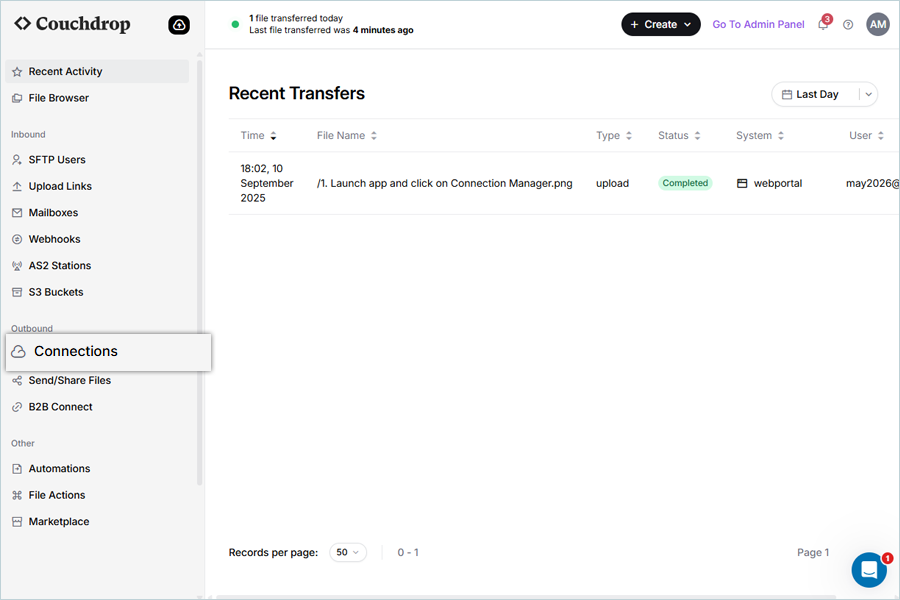
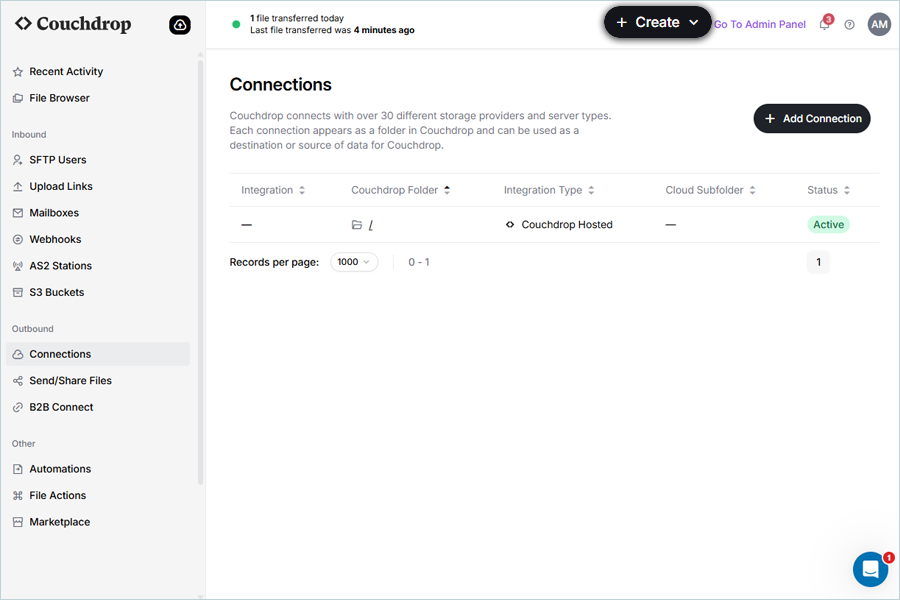
- Click + Create to create a new connection.
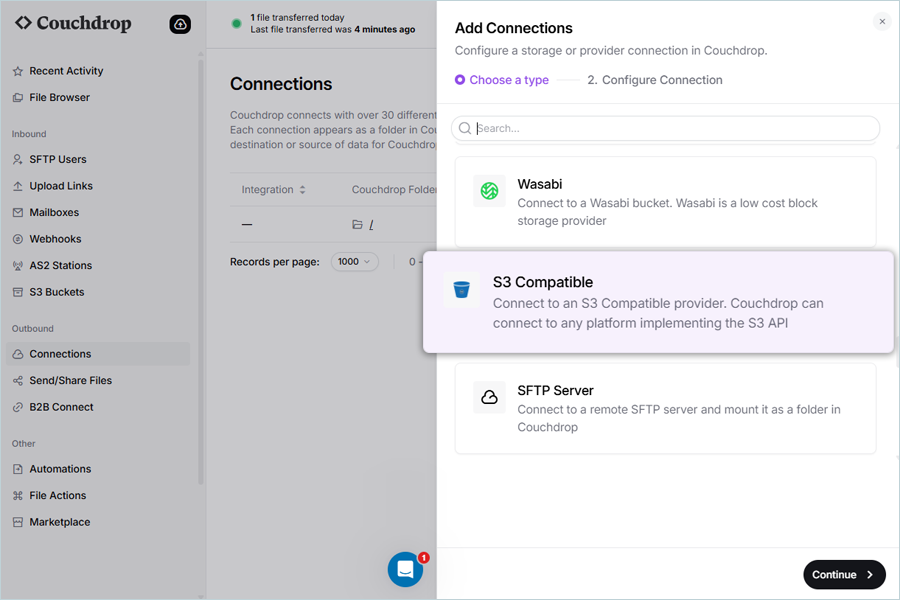
- Select S3 Compatible from the options in Choose a type.
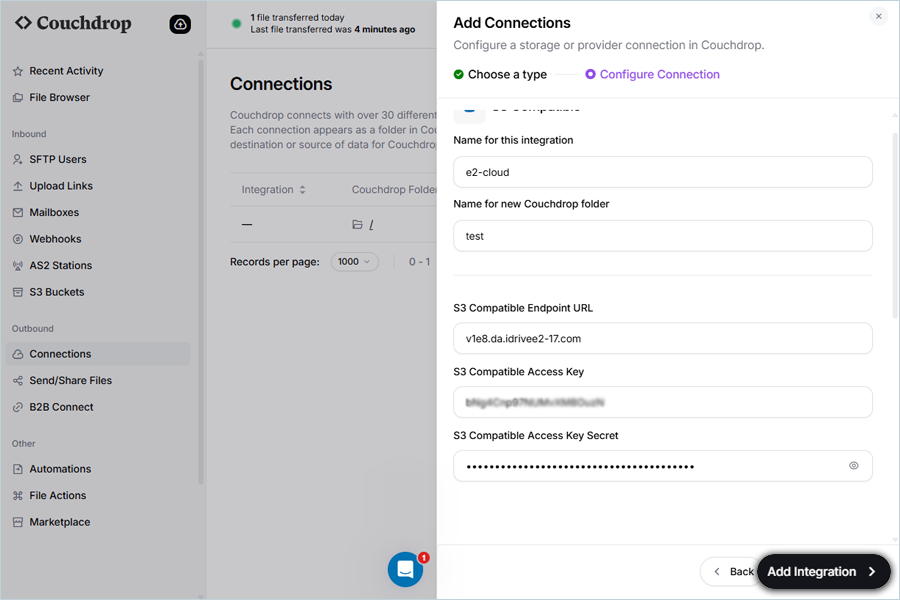
- Enter your IDrive® e2 details as mentioned below.
- Enter a Name for this integration.
- Enter a Name for the new Couchdrop folder.
- Enter your IDrive® e2 S3 endpoint as S3 Compatible Endpoint URL.
- Enter your IDrive® e2 Access Key as S3 Compatible Access Key.
- Enter your IDrive® e2 Secret Key as S3 Compatible Access Key Secret.
- Click Add Integration.
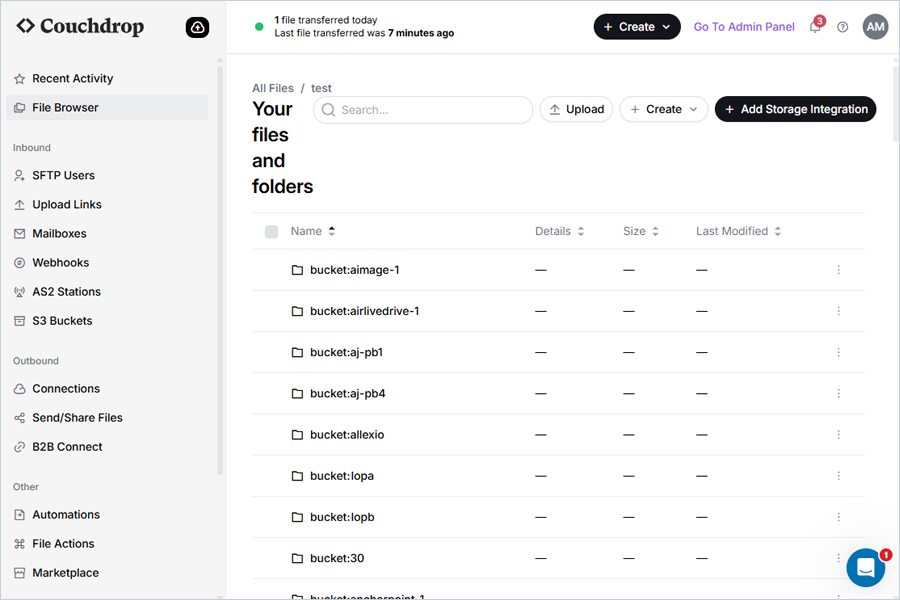
- Click File Browser in the left-side menu bar to access the added connection.
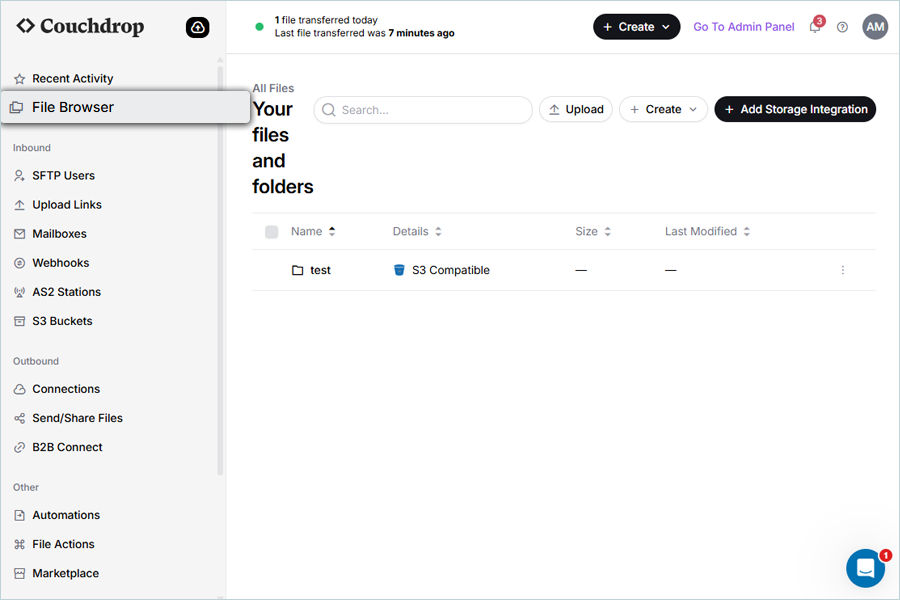
- Click on the added connection. You can access all the buckets of your e2 storage.