Integrate Caringo Swarm with IDrive® e2
Caringo Swarm is a software-defined object storage platform designed for scalable, reliable management of unstructured data, supporting enterprise, cloud, and archival use cases. It delivers automated data protection, compliance, and high availability through a symmetric architecture. Integrating Caringo Swarm with IDrive® e2 allows you to enhance these capabilities with scalable, secure, and cost-effective cloud object storage.
Prerequisites:
Before you begin, ensure the following:
- An active IDrive® e2 account. Sign up here if you do not have one.
- A bucket in IDrive® e2. See how to create a bucket.
- Valid Access Key ID and Secret Access Key. Learn how to create an access key.
- A valid Caringo Swarm account.
Configure Caringo Swarm with IDrive® e2
- Launch the Caringo Swarm application.
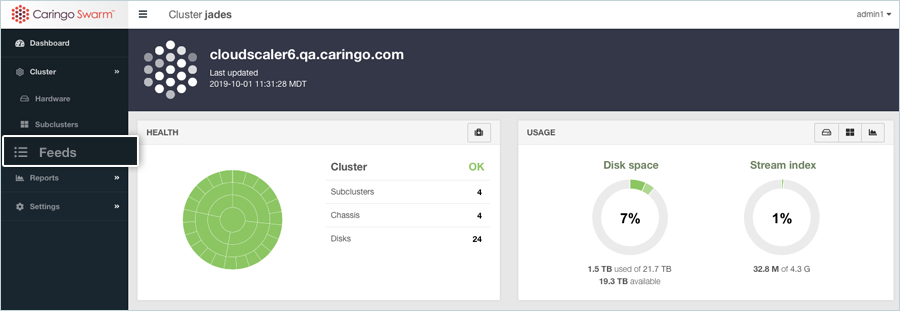
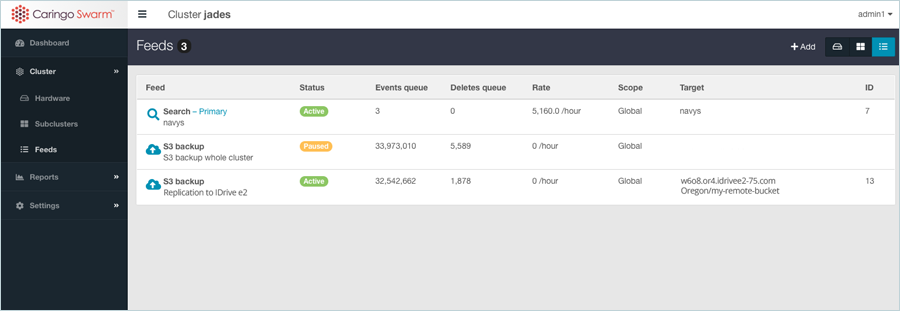
- Click Feeds in the left-side panel under Cluster.
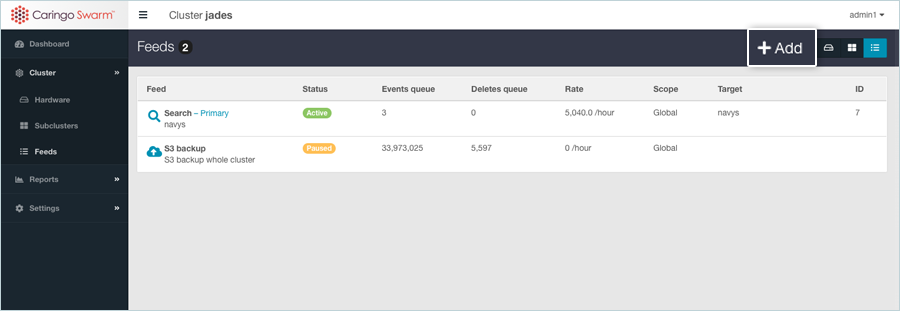
- Click +Add to add a new S3 backup feed.
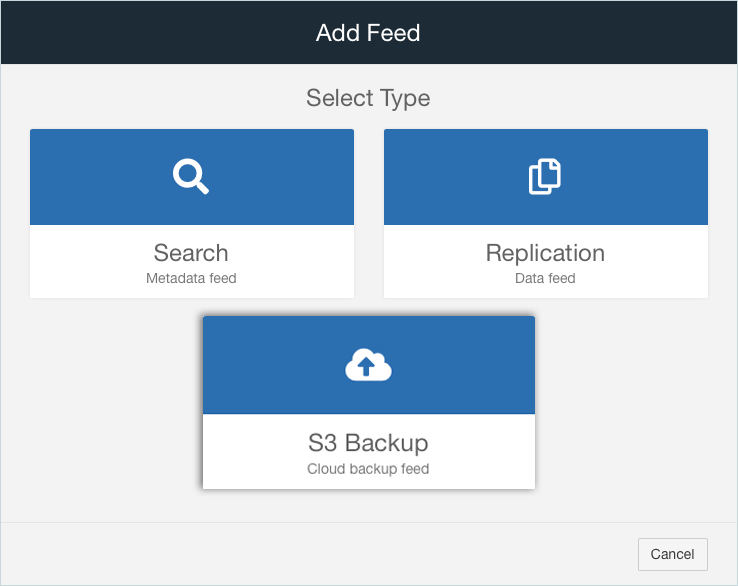
- Choose S3 Backup.
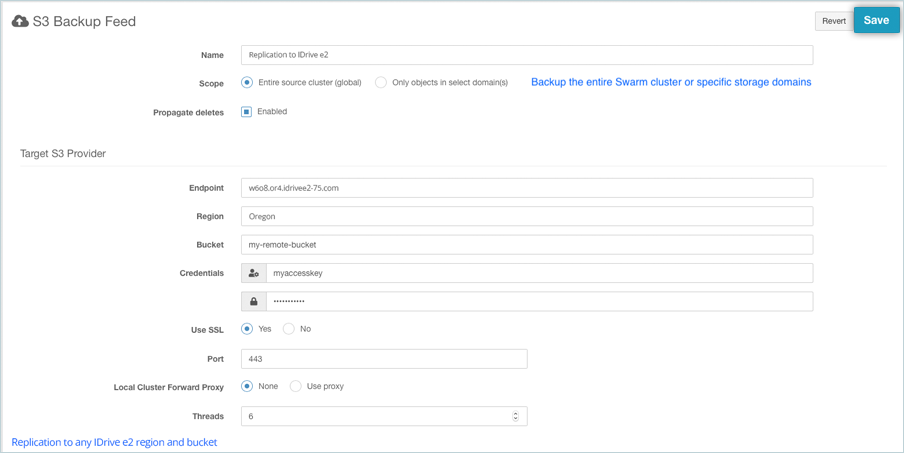
- In the S3 Backup Feed window, enter your e2 details as follows.
- Enter a name for the Feed.
- Select Scope as your backup.
- Enter your IDrive® e2 S3 endpoint as Endpoint.
- Enter your IDrive® e2 Region.
- Enter your IDrive® e2 Bucket as Bucket.
- Enter your IDrive® e2 Access Key and Secret Key as Credentials.
- Use SSL - Yes.
- Click Save.
Once added, confirm that e2 is listed under your Caringo Feed as the new target.
Note: Data restoration is handled by your specific backup solution provider and is affected by multiple variables that are unique to your environment. For application-related enquiries/support, it is strongly recommended you seek guidance from the technical team of your backup solution provider.